.png)
There are 2 fields to be filled. In Gmail Account you need to enter the login ID that you use to login to your Gmail and in the password field the password you use to login to your Gmail.
Cloud Sync
This feature enables you to synchronize your MailNow! data with the cloud. At the moment, we support the synchronization of your MailNow! mails with a Gmail account. So as long as you have access to your Gmail account, you also can access your MailNow! mails!
By synchronizing your mails to Gmail, you can tap Gmail fantastic global network infrastructure. So if you are on an overseas trip and the access to your MailNow! server at the office is slow from where you are, then Cloud Sync is your answer. Additionally, you can also tap powerful mobile Gmail applications on Android and other smart-phones to have push email on your phones at no additional costs!
One important point to remember is that, Cloud Sync does not forward your mails to Gmail. It synchronizes your mails. Forwarded mails are difficult to manage since multiple copies of the mails will be generated. It forces you to maintain 2 mailboxes (both in Gmail and MailNow!). With Cloud Sync, you can do your emailing from either MailNow! or Gmail and all the changes will be reflected to the other account.
And when you send emails from Gmail, it will be transparent to your recipients. You can still keep your corporate domain and maintain a professional image.
All this without incurring any additional cost!
So let’s see how the feature works:
Initially let us discuss the concept of synchronization using an example. Let's say user tom@internetnow.com.my sends a mail to harry@internetnow.com.my using MailNow! server. This mail will be synchronized to Gmail account and will be shown under "Sent Mail" folder. Now if harry@internetnow.com.my replies to tom@internetnow.com.my, the mail will be seen as an Unread mail under Inbox in both MailNow! server and corresponding Gmail account. If the user reads the mail in MailNow! server, that mail will be also seen as "read" in Gmail account; and vice versa. In other words, any operations on mails in "Inbox", "Sent Items" and "Drafts" folders will be mirrored (reflected) to the other server. A question may now arise that if a user sets mail A as "flagged" in Gmail and sets the same mail A in MailNow! to "un-flagged" which one would be applied. The answer would be fairly easy as synchronization is a time dependent concept. Whichever action that happened last will be reflected to the mail.
So after this basic introduction on synchronization, let's see how it can be configured in MailNow! 5.
Log into your webmail and navigate to Settings | Cloud Sync. On the left pane you should be able to see the following:
There are 2 fields to be filled. In Gmail Account you need to enter the login ID that you use to login to your Gmail and in the password field the password you use to login to your Gmail.
.png)
Under Advanced button, you can set which of the three folders of "Inbox", "Sent Items" and "Dratfs" to be synchronized with Gmail. You can also set the number of most recent emails in your MailNow! server to be synchronized with Gmail.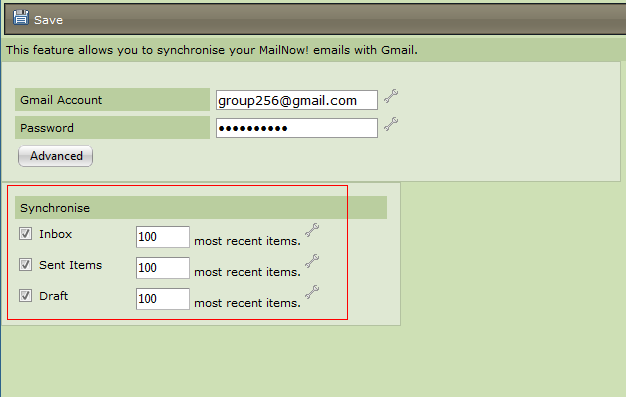
Once done, click on Save to save the configuration. Wait for about 5 minutes before your mails will start appearing in your Gmail account.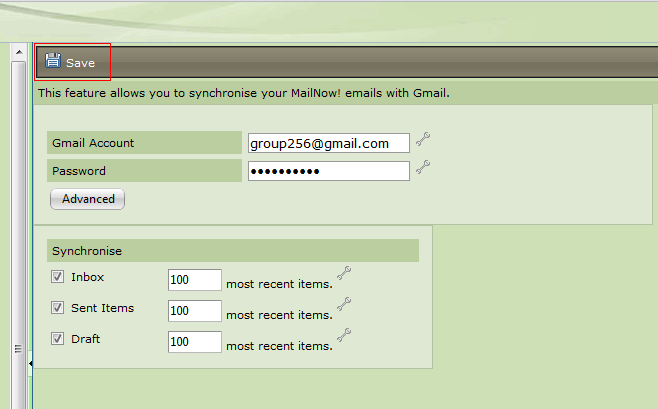
There is one more detail that should be noted in order for your mails to be synchronized properly. You need to configure your corporate email address in Gmail. This will allow you send emails from Gmail using your corporate email address, hence keeping your professional image while corresponding with your contacts.
This can simply be done in Gmail by going to Settings | Accounts | Send mail as | Add another email address you own. .png)
Cloud sync will synchronize any sent mail with the address of your MailNow! 5 address. Any other addresses used for sending out mails in Gmail will be ignored. This is due to fact that users usually do not like to see their private emails or non-work related emails in their corporate mailbox..png)
To be more clear, if you compare the Gmail mailbox (above image) with MailNow! Inbox (below image) you would notice all mails are synchronized except for those that are indicated in the red rectangles. Those emails are sent to user's Gmail account (i.e. group256@gmail.com) and as the result Cloud Sync will not synchronize those mails.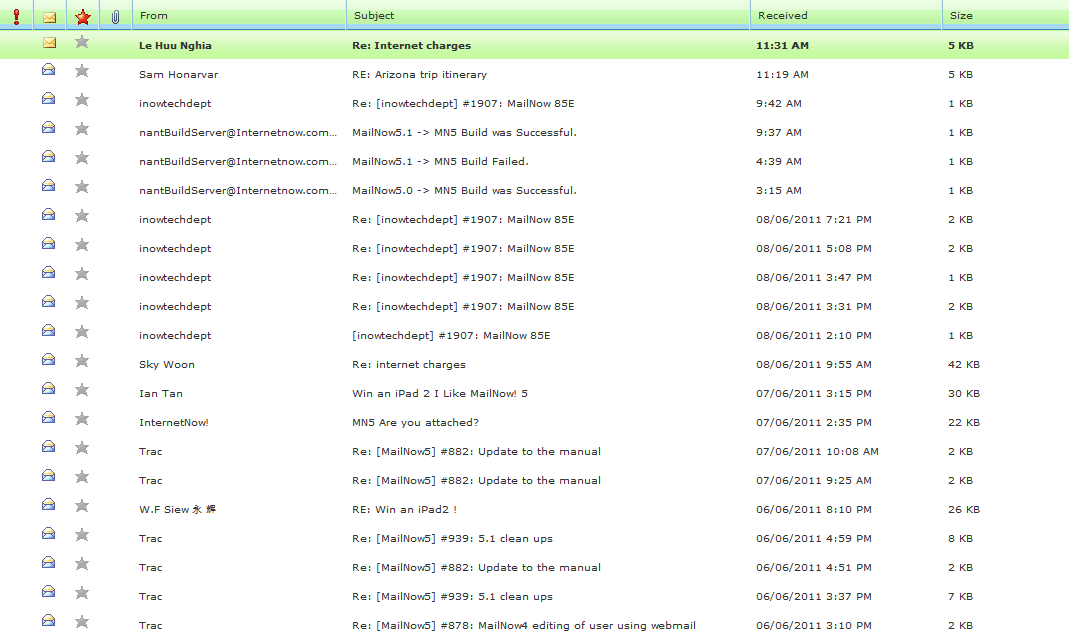
One last thing to be mentioned is that, it might take few minutes for newly transacted mails to be seen on the other mailbox. In other words, if you compose a mail in your MailNow! 5 account and send it, you might not be able to see the sent mail instantaneously in your Gmail account as it takes few minutes for synchronization process to synchronize the mails from one mailbox to another.
The table below shows the operations and their effects on both mailboxes:
|
Action in MailNow! |
Action in Gmail |
Result |
|
New mail arrives |
None |
The new mail will appear in Gmail |
|
None |
New mail arrives |
The new mail will not appear in MailNow! since this is a personal mail |
|
A new mail is composed and sent |
None |
The same mail will appear in Gmail's Sent Mail folder |
|
None |
A new mail is composed and sent |
The same mail will appear in MailNow! Sent Items folder (as long as the email composed is sent using the MailNow! address) |
|
Mail in Inbox deleted |
None |
The same mail will moved from from Gmail's Inbox to Trash folder |
|
None |
Mail in Inbox deleted |
The same mail will be moved from MailNow! Inbox to Deleted Items Folder |
|
A new draft mail is added |
None |
A new mail with same content will be added to Gmail's Drafts folder |
|
None |
A new draft mail is added |
A new mail with same content will be added to MailNow! Drafts folder |
|
Mail is set to (Un)Read |
None |
Same mail in Gmail will be set to (Un)Read |
|
None |
Mail is set to (Un)Read |
Same mail in Gmail will be set to (Un)Read |
|
Mail is set to Starred |
None |
Same mail will be set to Flagged in Gmail |
|
None |
Mail is set to Flagged |
Same mail will be set to Starred in MailNow! |